
Hit It: Reaction and Impulse Control
Training Goal
Hit It trains alertness (responsiveness) and supports faster, more reliable reactions. It targets reaction speed, reaction consistency, and impulse control, helping patients quickly increase and sustain attention intensity. Both tonic and phasic alertness can be improved.
Hit It offers two selectable modes: (1) an alertness-only reaction task, and (2) alertness + impulse control/selection, adding inhibitory demands and distractor-based selectivity. This allows clinicians to separate basic processing-speed/alerting work from higher-level response control.
What does the patient/client need to do in "Hit It"?
An image appears in the center of the screen - when it shows up, respond as fast as possible by tapping/clicking or pressing Space/Enter. Key point: stay alert and react quickly.
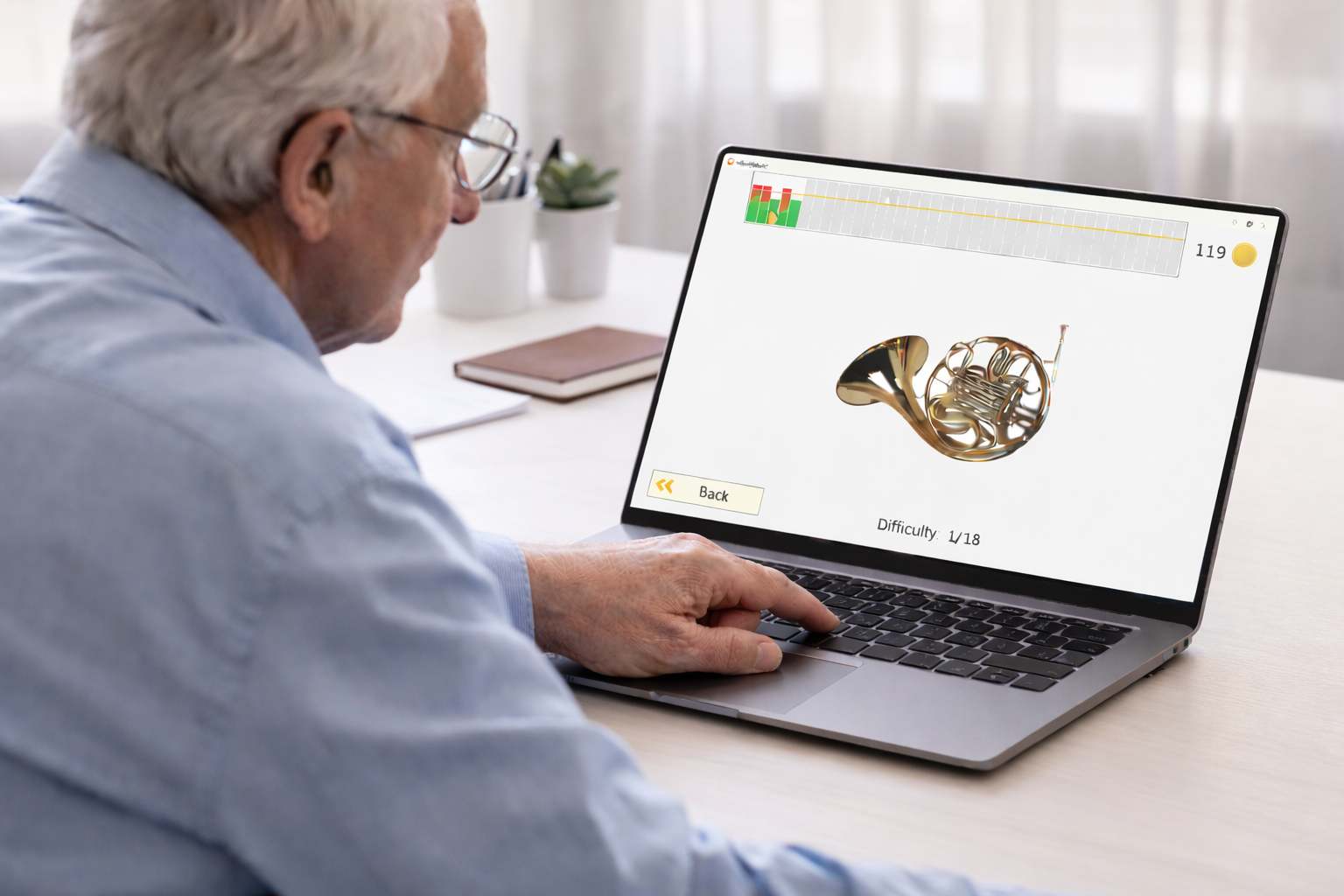
Normative Reaction Time
Typical ranges for simple visual reaction tasks (Alertness-only). Not strict cut-offs, but a practical benchmark.
18-25: ~190-250 ms
26-35: ~220-270 ms
36-45: ~250-300 ms
46-60: ~280-350 ms
61-75: ~300-400 ms
75+: >400 ms
Example Use Case
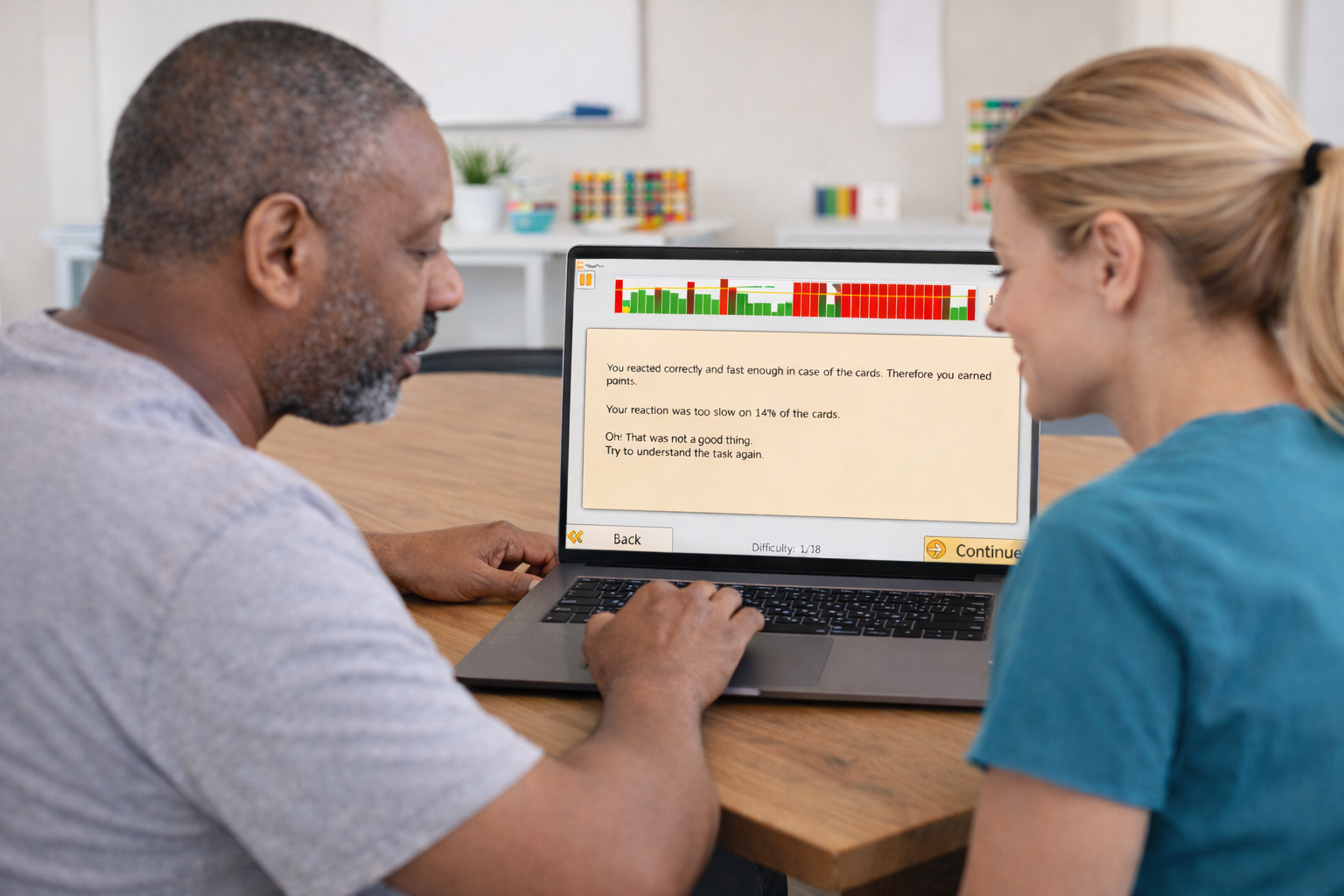
Outpatient neurorehabilitation: A therapist introduces Hit It with a post-stroke patient who presents with slowed processing speed and intermittent attention lapses (delayed responses, missed cues). For the first 1-2 weeks, Hit It is used at the start of each visit as a brief warm-up in Mode 1 (alertness-only) to establish day-to-day consistency while tracking reaction time and misses.
As performance stabilizes, the therapist shifts more time into Mode 2 during clinic sessions to train response inhibition and selective responding under distractors - helping the patient stay fast without "false hits"or impulsive responses. Between visits, the therapist assigns a short Home Exercise Program (HEP) in Mode 2 to reinforce response control and carry gains into real-world attention demands.
Over time, the therapist gradually adds other attention training tasks as well, because attention is multi-component and improvements are more likely to generalize when treatment targets multiple skills (e.g., sustained attention, selective attention, shifting) rather than relying on a single exercise.
Across a 4-6 week treatment block, the therapist reviews trend changes in reaction time and error rate, updates the next session's targets (speed vs. accuracy emphasis), and documents measurable progress in the progress note.
Settings
Whenever you change any parameter, a "Default" button appears. Use it to reset all settings to the standard defaults. If you don't want to use the default settings, you can adjust the following:
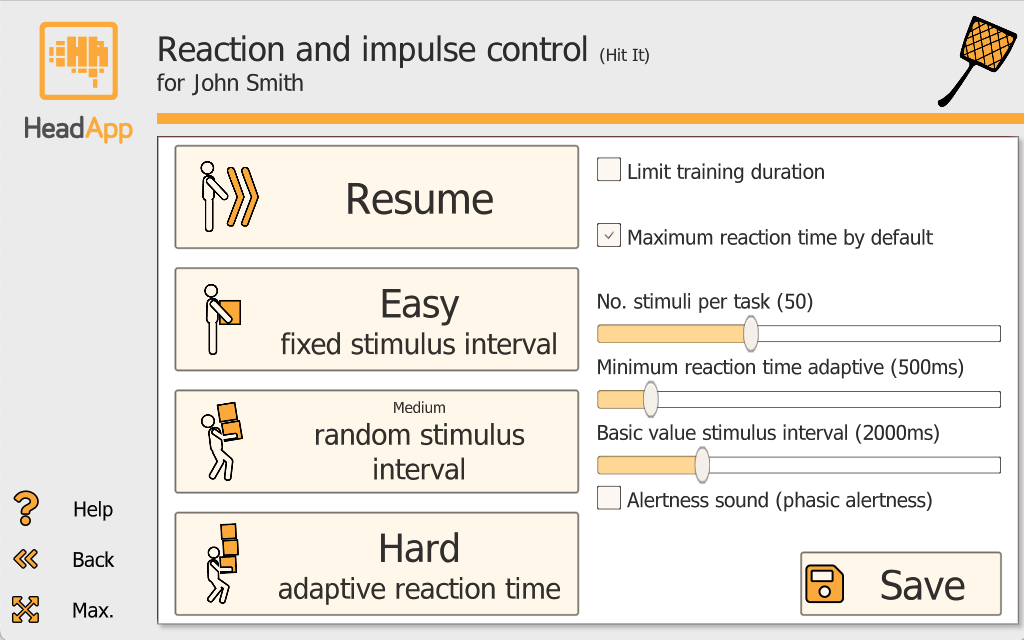
1) Number of stimuli per task: Use the slider to set how many stimuli appear in one task. Range: 20 to 100.
2) Limit training duration: Limiting the training duration can be useful for time management or therapeutic reasons. When you enable "Limit training duration," a slider appears (10 to 60 minutes).
3) Reaction time: a) "Maximum reaction time by default" - HeadApp runs a short trial round to determine the trainee's individual working speed. b) Set maximum reaction time manually (300-3000 ms). Tasks become more difficult with each level, so HeadApp automatically increases the allowed time by 2% per level. The selected maximum is shown as a yellow line in the reaction-time chart. c) In Hard mode, you can set "Minimum reaction time adaptive" (300-2000 ms) for high-intensity alertness training near the person's performance limit. d) In the results, reaction time is shown as the mean of the medians of all runs for that day (in ms).
4) Basic value stimulus interval: Set a value between 1000 and 5000 ms. If Medium (random stimulus interval) is selected, stimuli appear at an interval of -50% to +50% around the set value.
5) Alertness sound: Enable"Alertness sound" to increase mental activation - shifting from tonic alertness (steady baseline) to phasic alertness (a brief alertness boost).

Pick It: Attention and Focus
What Pick It Trains
Pick It targets attention and focus through structured visual search and comparison tasks. It also strengthens visual scanning, which is especially relevant for patients with visual neglect or hemianopsia, where systematic exploration of the visual field is a core therapeutic goal.
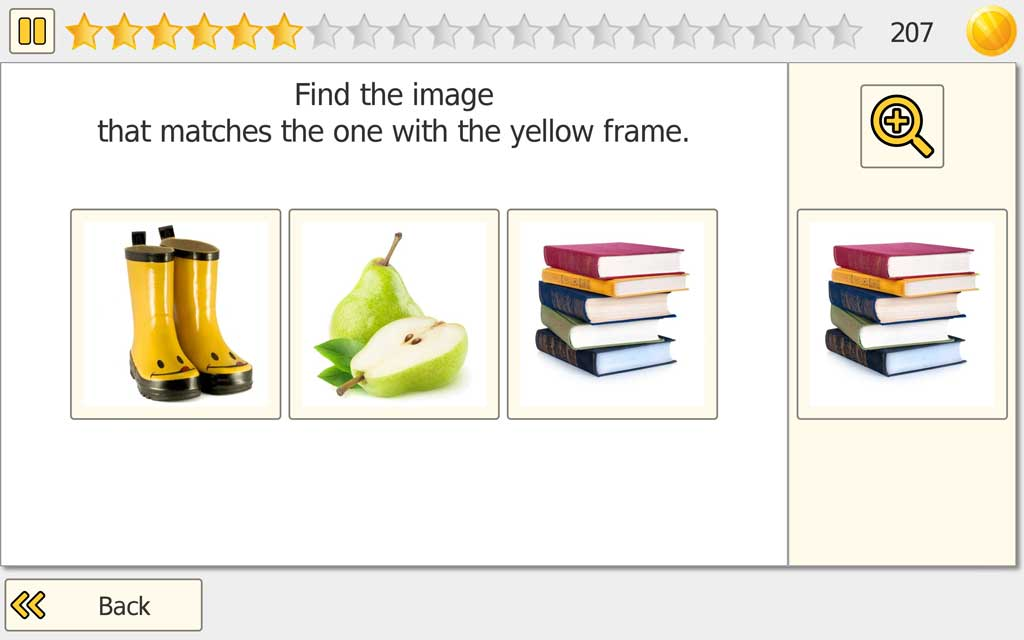
What does the patient/client do?
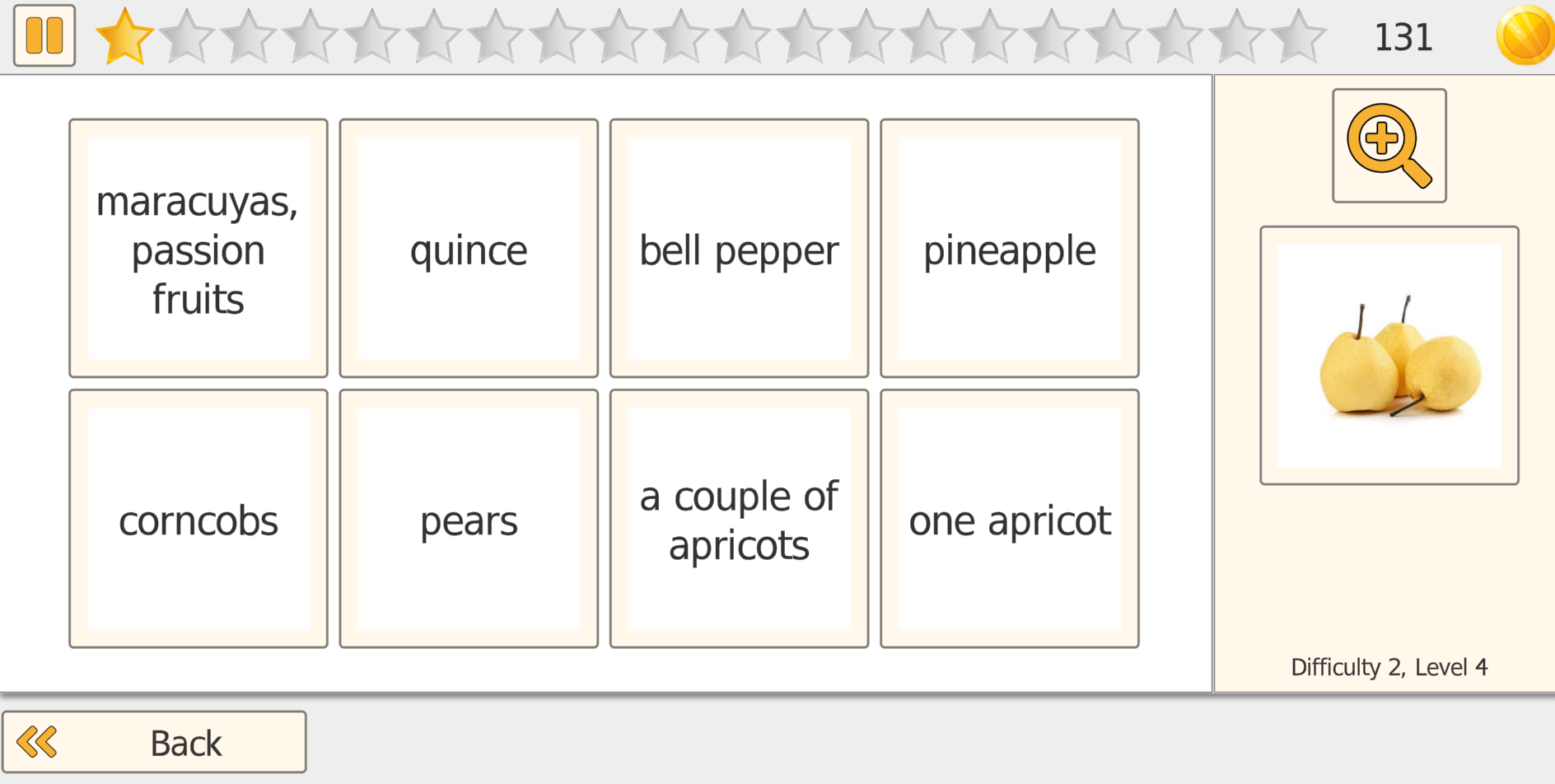
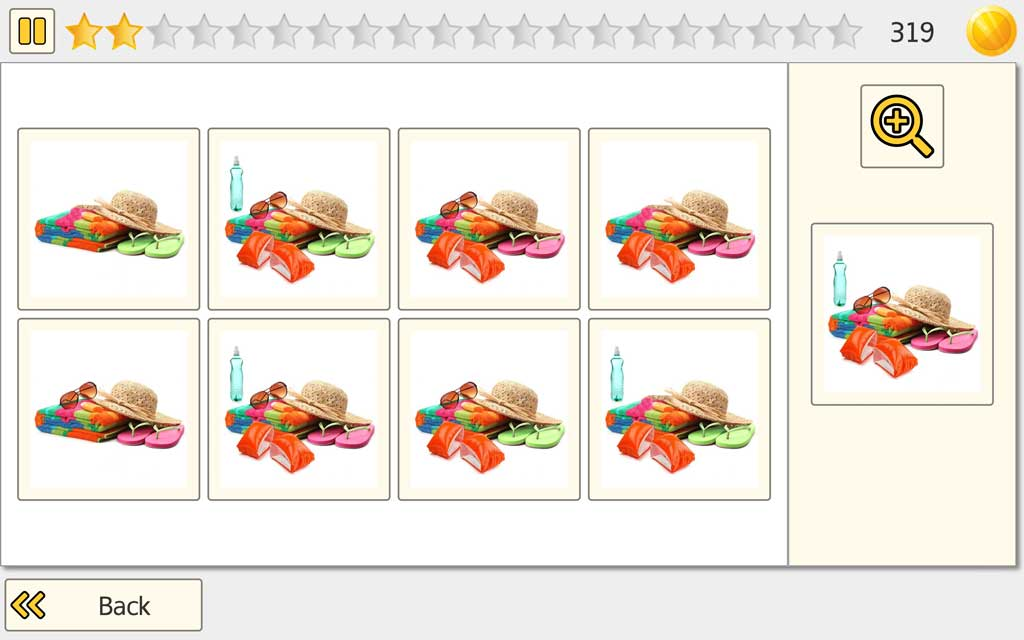
The patient/client views a set of images that often look very similar and must identify the correct match by carefully comparing details. Depending on the selected mode, the target is shown as a reference image or as a word that must be matched accurately.
Modes and Clinical Use
Pick It offers flexible matching modes so you can align the task with attention, visual scanning, and language goals:
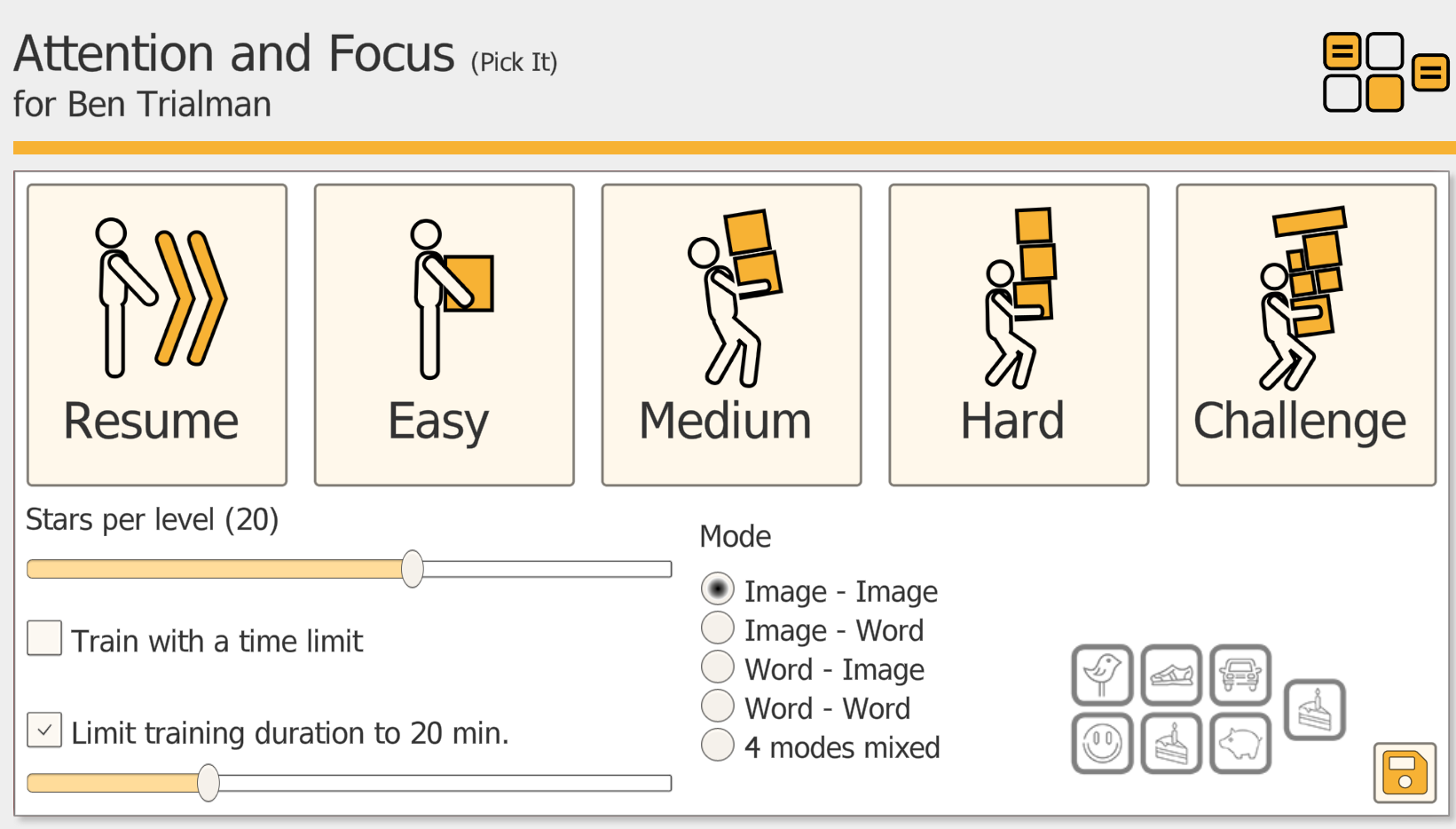
Image-Image: match the target picture to the correct picture in the set.
Image-Word: match a target picture to the correct written word.
Word-Image: match a written word to the correct picture.
Word-Word: match a target word to the correct word.
4 Modes Mixed: automatically alternates between all four modes to increase variety and reduce predictability.

Difficulty Progression
As difficulty increases, Pick It becomes more demanding by increasing the number of images on screen and making differences more subtle, requiring more sustained attention and more precise scanning.
Accessibility
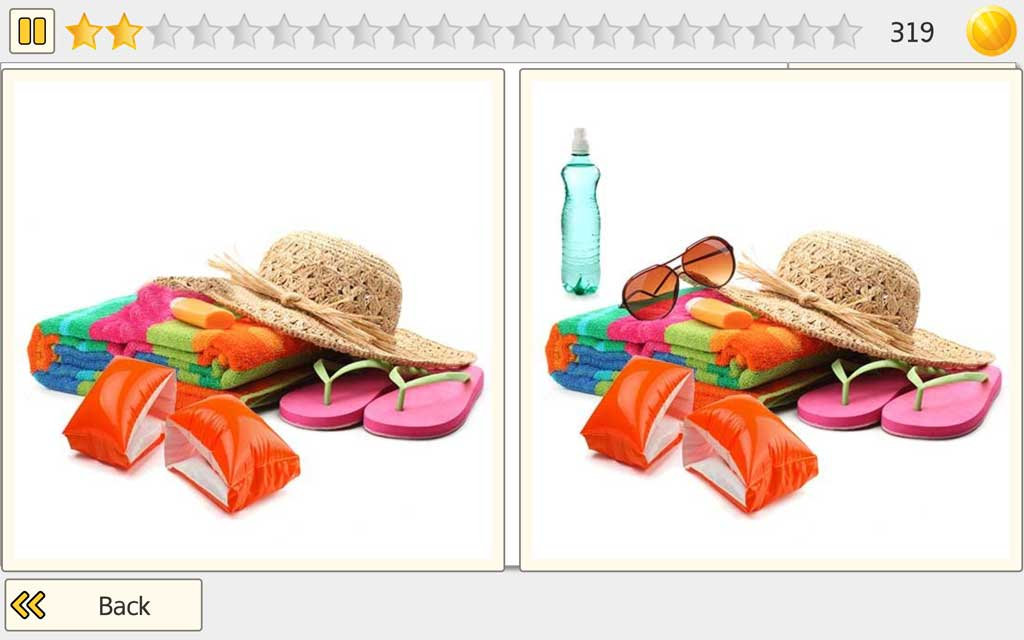
To support a broad range of users, Pick It includes a Zoom function, helping patients/clients with reduced vision clearly see image details.
Neglect Support
For patients with neglect, an optional optokinetic stimulation feature can be enabled to support visual exploration and attention toward the affected side during training.

Vita Att: Attention and Versatility
What is Trained
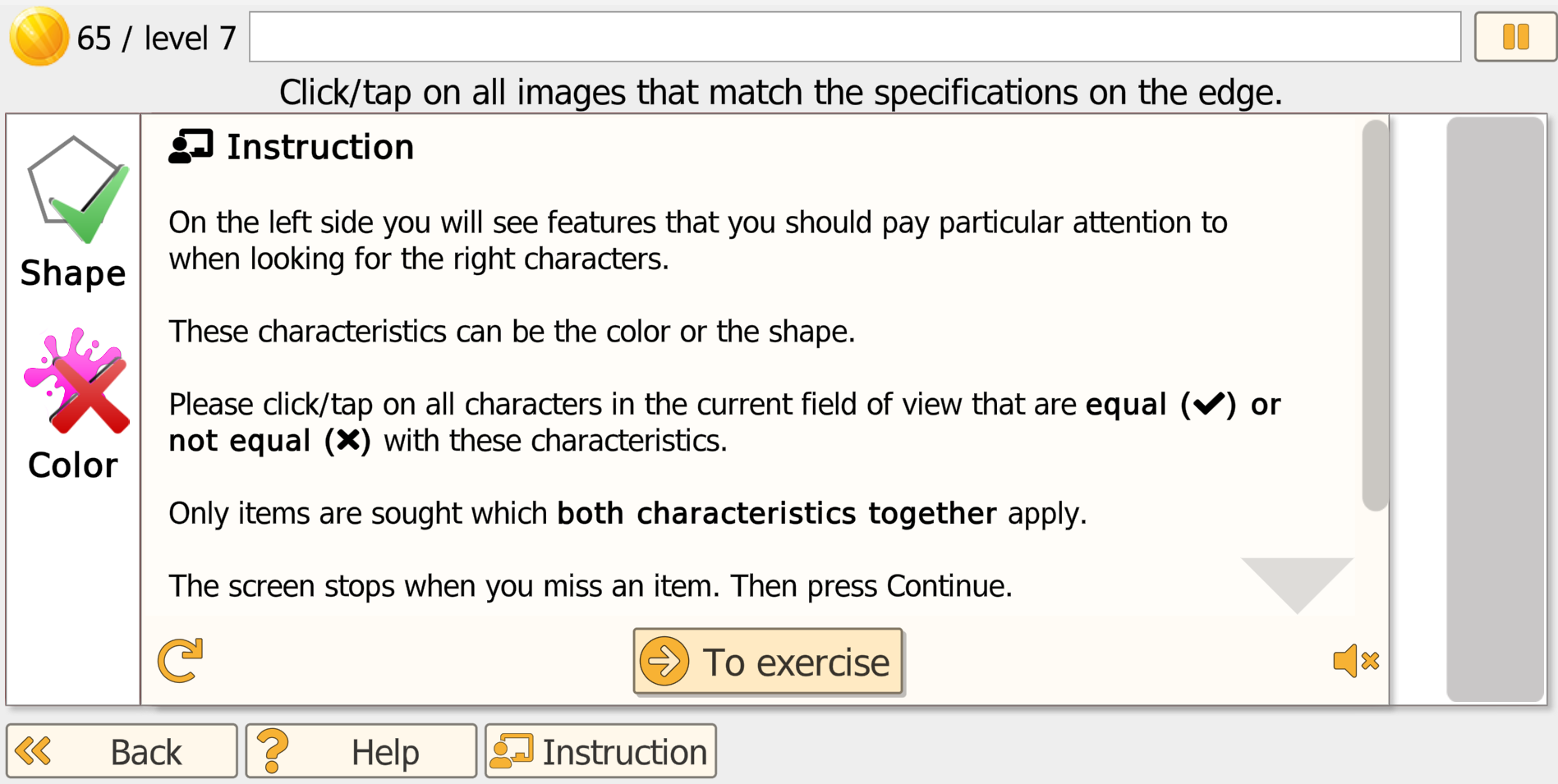
This exercise targets key components of attention: selective/focused attention (filtering relevant targets), divided attention (monitoring moving stimuli while tracking the current rule set), and visual-spatial attention (continual shifting of attention as items enter and leave the screen). It also supports alertness, information processing speed (faster and denser stimulus flow at higher levels), and sustained attention over the session. Because the rules can require both selecting and withholding responses, it additionally trains cognitive flexibility and inhibition of automatic response habits.
Patient/Client Task
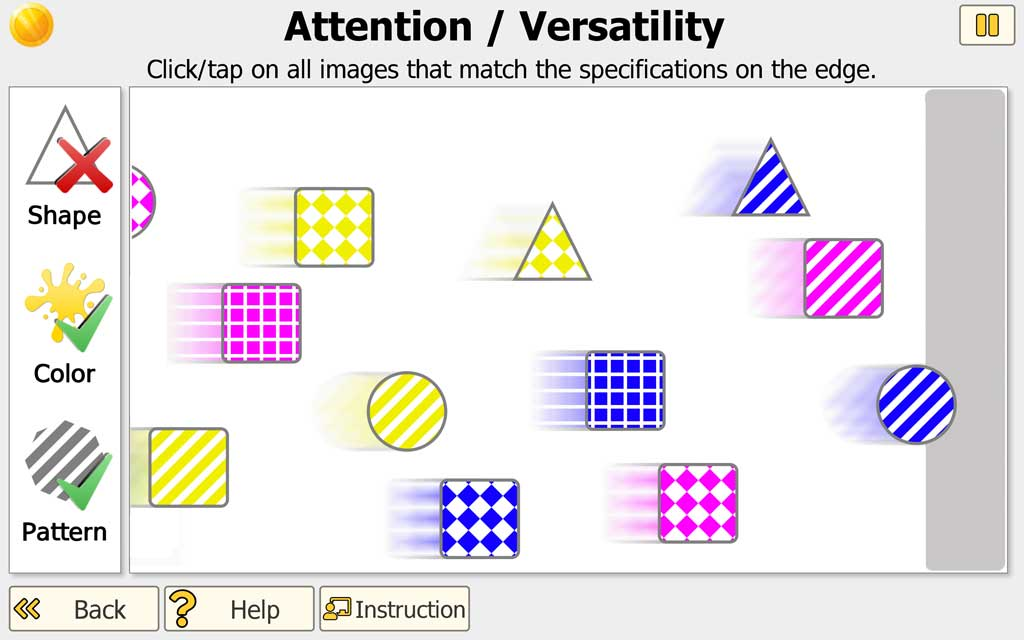
A continuous stream of objects moves horizontally across the screen. Objects vary by color and shape and, at higher difficulty, may include patterns. The current selection rules are displayed along the edge of the screen (e.g., select a specific color and/or shape, or select items that do not match a feature). The patient/client taps/clicks the targets as they pass. Errors (missed targets or incorrect selections) are indicated in a small area at the edge; when an error occurs, movement briefly pauses to provide immediate feedback.
Settings
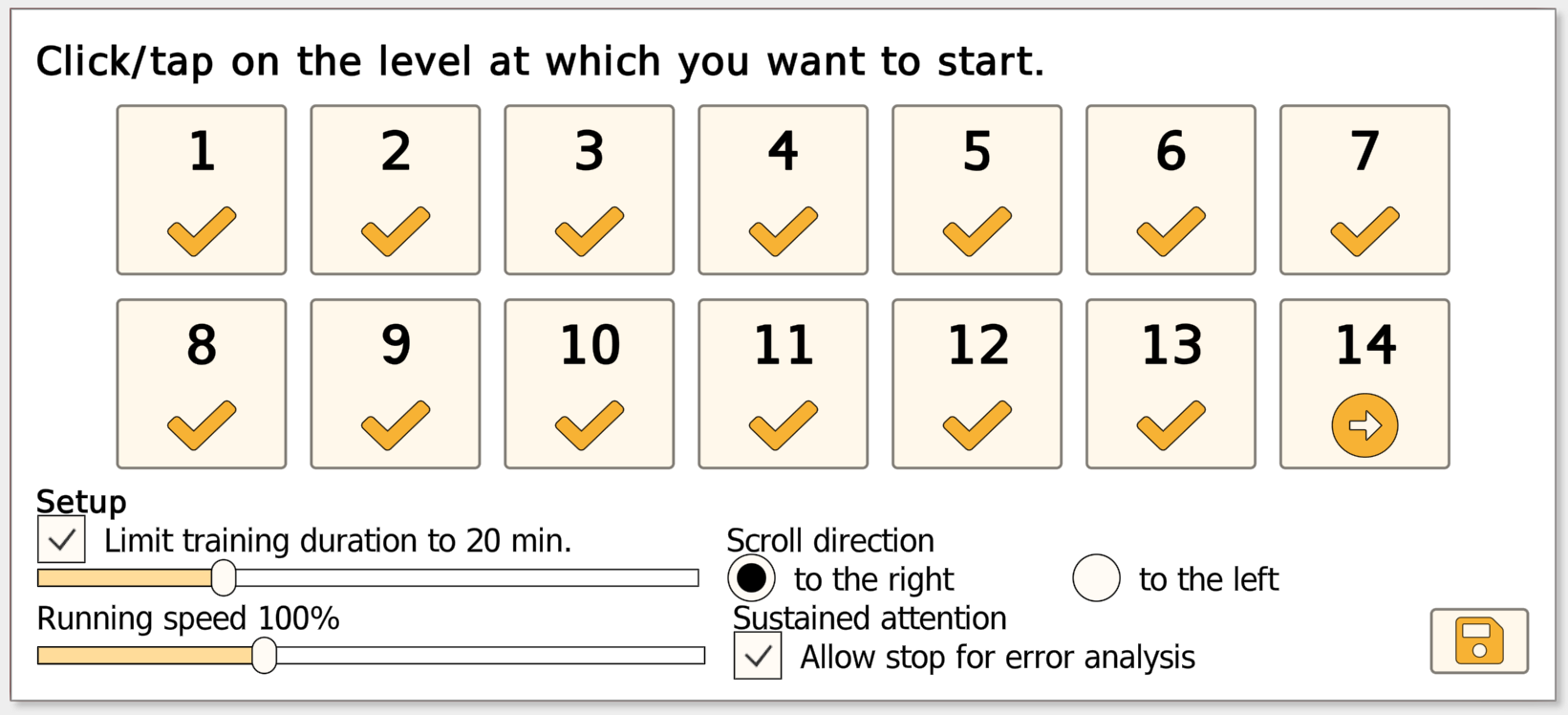
Training duration: A common session length is about 20 minutes. For patients/clients with reduced attention span or fatigue, shorter sessions (e.g., 10 minutes) may be clinically appropriate, sometimes scheduled as multiple brief sessions per day.
Level Progression (Adaptive)
The exercise begins at a low difficulty to support success and avoid overload. Difficulty then adjusts automatically based on performance: the level increases after sustained accurate responses and decreases when error rates rise, allowing the patient/client to stabilize at a manageable level before progressing again. As levels increase, the task becomes more demanding through higher stimulus density, greater speed, and added visual complexity (patterns). In advanced levels, the target rules may change multiple times within a single task, increasing demands on divided attention, rapid updating, and response control.
Stimulus Flow Direction
By default, stimuli move left to right. You can switch the flow right to left when clinically indicated - for example, to encourage attention and scanning toward the affected side in patients with unilateral neglect.
Example Use Case
In a private OT/SLP/neuropsych practice, a therapist introduces the exercise with an adult patient following a mild-moderate TBI who reports slowed processing speed, distractibility, and difficulty keeping up in busy environments. During weeks 1-2, the exercise is used briefly at the start of each visit to establish baseline consistency and rebuild reliable selective responding.
Across weeks 3-6, the patient trains with the program's adaptive leveling: difficulty increases after repeated accurate performance and drops back when errors accumulate, helping the patient consolidate a doable level before progressing again. Between visits, the therapist assigns a short Home Exercise Program (HEP) (e.g., 5-10 minutes, 3-5 days/week) to support carryover.
Over a 6-8 week treatment block, the therapist reviews accuracy, misses, and response consistency trends to adjust session-to-session targets (speed vs. accuracy emphasis) and document functional gains aligned with the patient's goals.
Progress Tracking
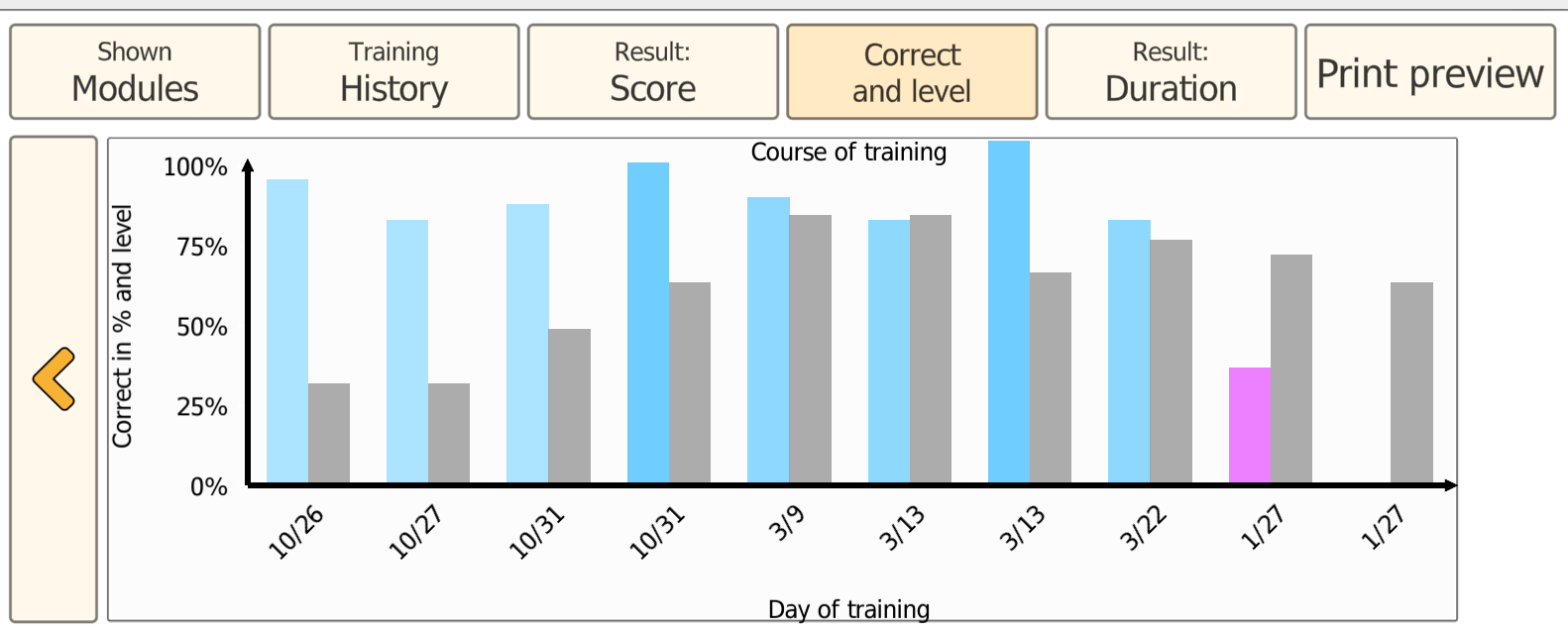
Progress is saved automatically. The next session resumes at the difficulty level where the previous session ended. The Results view provides multiple ways to review performance trends over time, supporting goal setting and documentation.

Vita City: Spatial Cognition
What is Trained
Vita City (City Map) trains spatial cognition by combining visuospatial processing with structured, goal-directed scanning. It targets visuoconstruction (building a coherent map from parts), visual orientation on complex 2D layouts, spatial working memory, and planning under route constraints.
Patient/Client Task
The task has two parts:
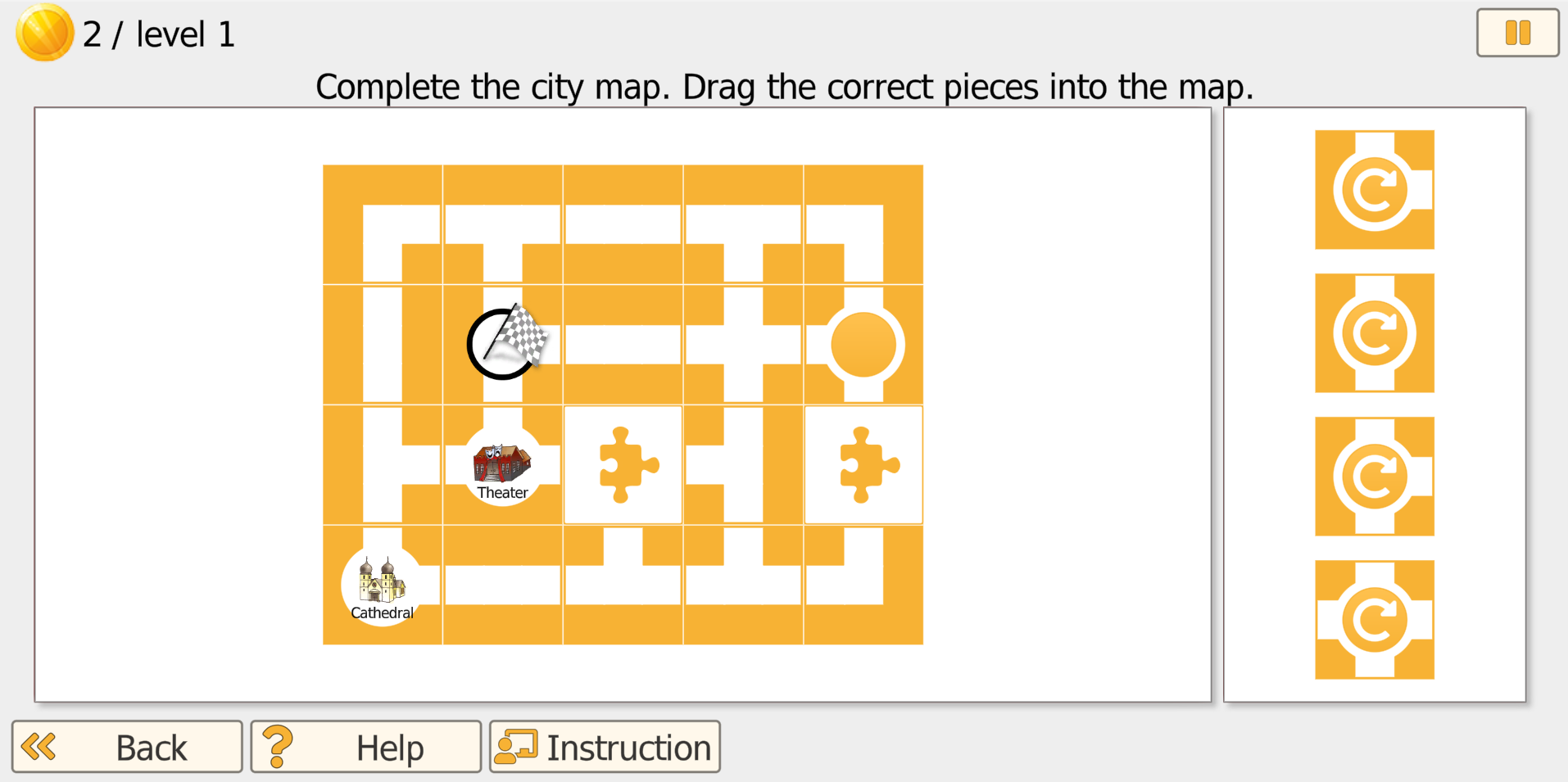
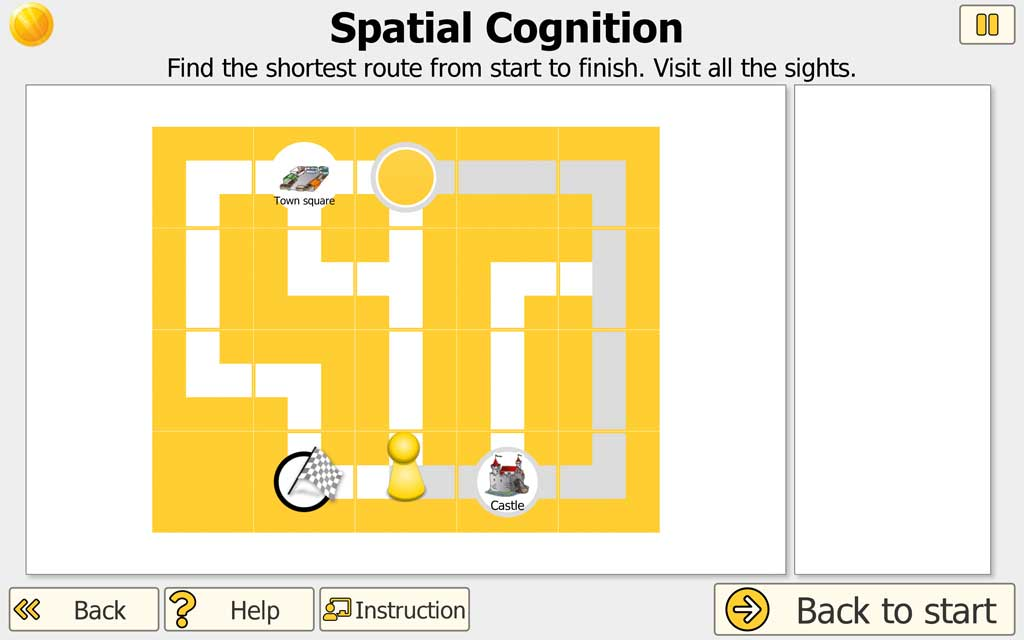
Part 1 (Complete the city map): The patient/client sees an incomplete city map with missing sections. The selectable map tiles are shown on the right side. The patient/client drags tiles into the open gaps to complete the map so that roads connect correctly.
- In lower levels, the program provides strong guidance and tiles rotate automatically.
- In higher levels, the patient/client may need to rotate tiles in 90-degree steps before or after placing them.
Patient/Client Task (Part 2)
Find the shortest route: After the map is completed, the patient/client plans the shortest route from a start point to the finish while visiting all landmarks shown on the map. In advanced levels, certain road segments become one-way streets, adding a realistic navigation constraint.
Settings
Training duration: A typical session length is about 20 minutes. For patients/clients with reduced endurance or attention, shorter sessions (e.g., 10 minutes) may be clinically appropriate, sometimes scheduled as multiple brief sessions per day.
Level Progression
Training begins at a low complexity to support success. Higher levels increase demands by using more complex maps, requiring manual tile rotation, increasing the number of landmarks to visit, and adding one-way street constraints that require more advanced planning and error monitoring. Levels unlock progressively by default; clinicians can enable access to all levels when appropriate.
Example Use Case
In a private OT/neuropsych practice, a therapist introduces Vita City with an older adult with MCI who reports getting disoriented in unfamiliar places and struggling to plan multi-step errands. During weeks 1-2, sessions emphasize Part 1 to strengthen visuoconstruction and scanning strategies (placing the right tiles from the right-side panel to complete the map).
Across weeks 3-6, the therapist increases focus on Part 2 - finding the shortest route while visiting all landmarks - and gradually introduces higher-level constraints (more landmarks, one-way streets) to train planning and flexible route selection.
Between visits, the therapist assigns brief home training (e.g., 10 minutes, 3-4 days/week) to reinforce strategy use. As the patient's tolerance improves, the home plan is often expanded by blending in additional training modules (e.g., Attention and Focus or memory tasks) to support broader carryover.
Over a 6-8 week block, the therapist reviews trends in completion accuracy and route efficiency to adjust targets and document functional carryover to everyday navigation and planning demands.
Progress Tracking
Progress is saved automatically. A new session continues at the difficulty level where the last session ended. The Results view offers multiple ways to review performance trends over time, supporting documentation and goal setting.

See It: Divided Attention
What is Trained
See It combines divided attention and scenic short-term memory. Patients must sustain focus on a complex street scene, scan the entire display (relevant for neglect), and - when sound is enabled - split attention between visual and auditory cues. The task also supports working/short-term memory for everyday-like events and requires basic reading comprehension to answer the follow-up questions.
Patient/Client Task
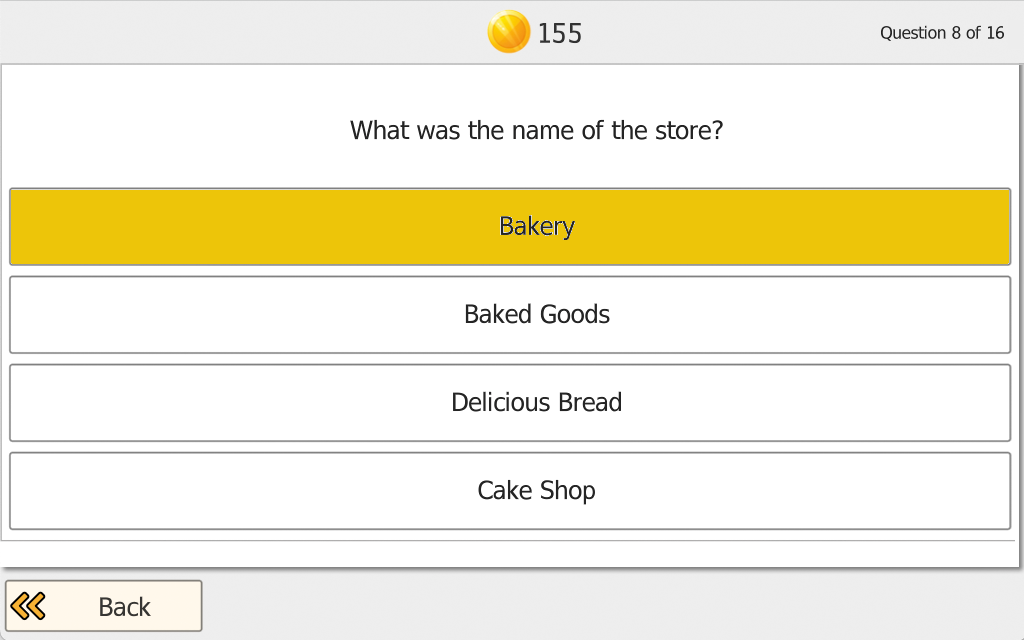
The patient/client first watches a street scene (visual events and, optionally, sounds) for a brief period and tries to memorize as many details as possible. Immediately afterward, the program asks multiple-choice questions about what was seen and heard (typically 10-16 questions, depending on difficulty). The patient/client selects the best answer; after each response, the program provides immediate feedback (correct/incorrect). At the end of the question set, an overall percent correct score is shown.

Settings
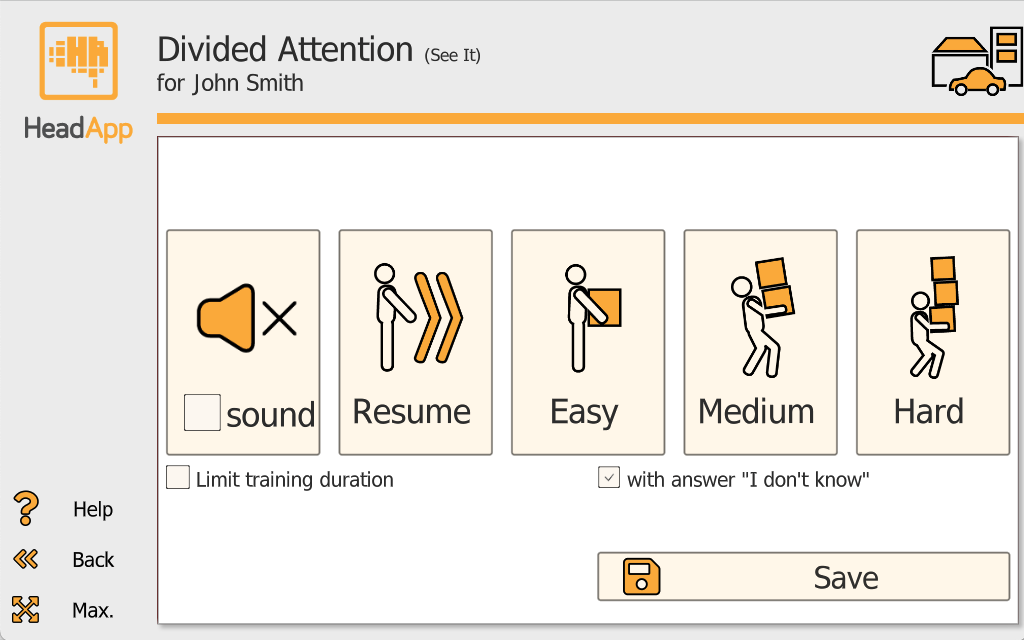
Sound (on/off): Sound off = visual scene only. Sound on = additional auditory cues (e.g., siren and/or music).
Difficulty start (Easy/Medium/Hard): Choose the starting difficulty level.
Limit training duration (on/off): Off = new scenes continue until the patient/client stops the task. On = set 4-15 scenes (default 8).
Answer option "I do not know" (on/off): Off = the patient/client must choose an answer for every question. On = "I do not know" is available to reduce pressure for patients with limited memory capacity; consider disabling if it is selected too frequently.
Level Progression
With increasing difficulty, the scene complexity and the amount of detail increase, and the program adjusts how much time is available for memorization. Question number and specificity also increase with difficulty.
Adaptive Difficulty
Difficulty adjusts based on performance across scenes:
- < 50% correct twice: difficulty decreases
- 50-90% correct: difficulty remains the same
- ≥ 90% correct four times in a row: difficulty increases
Example Use Case
In an outpatient concussion clinic, a therapist introduces See It to a patient with persistent post-concussion symptoms who reports difficulty following conversations in busy environments, reduced attention stamina, and "missing details" in everyday situations (e.g., at the grocery store or while commuting). During weeks 1-2, sessions start with Sound off at Easy/Medium to build reliable visual scanning and memory for key scene elements without overload.
Across weeks 3-6, Sound is gradually enabled to increase dual-task demand, mirroring real-world situations where patients must process visual information while filtering auditory input. If the patient shows high anxiety or performance drops due to pressure, the therapist temporarily enables "I do not know" to support engagement, then phases it out as encoding effort improves.
Between visits, brief home practice (e.g., a small set of scenes 2-3 times/week) can reinforce carryover. Over a 6-8 week block, the therapist reviews percent-correct trends and error patterns to adjust targets and document functional improvements in divided attention and everyday memory for events.

Experience the Attention Modules
Start Therapist Free Trial.
Try Hit It, Pick It, Vita Att, Vita City, See It, and all other programs.